 Phys 219-13!
| Differences between revisions 1 and 47 (spanning 46 versions) | Back to page |
|
Size: 125
Comment:
|
Size: 8239
Comment:
|
| Deletions are marked like this. | Additions are marked like this. |
| Line 1: | Line 1: |
| #acl Known:read <<TableOfContents>> <<fl(F)>>irst off, if you are unsure what a wiki site is, you've got company! I am also quite unexperienced with a wiki site. However, it seems that a wiki site can be an ideal place for collaboration. So, please consider this site as <<h(<span style="font-variant: small-caps; font-size: 150%; font-weight: bold;">Your</span>)>> site. == Edit what or how? == Basically, practically all pages inside Momo wiki are editable by all Momo group members. If you visit a page, and if there is a pencil icon in the top left area at the end of the navigation bar, then that page is editable by you. ~-The navigation bar is the list of links provided right above the golden strip.-~ Then, you will also see an "edit bar" near the bottom of the page as well. That is a slightly purple bar just below the golden strip at the end of the page. The menu launched by the "pencil icon" and the menu provided at the "edit bar" are identical except the last menu item. If you see that a page is editable, chances are that you can create a page in that wiki as well. Try it! To create a page, create a link in a document first and then click on that link. You will then be asked to create a page. Alternatively, enter, in your browser, a URL that points to a non-existent page within Momo wiki. Then again, you will be given a chance to create that page. In the latter case, that page won't be linked from any existing page. To edit an exising page, click on the "Edit (TEXT)" link that comes up when you move your mouse over a pencil icon above. If you like, you can use the "Edit (GUI)" link. I rarely do, as the GUI editor is a bit slower. But it might be easier for a first time user. Of course, you do not have to edit a page after clicking an "Edit" link. Often, the sole purpose of clicking "Edit" is to find out how certain things are done, and copy and paste the "source code" to another page. You can write plain text, '''bold faced text''', ''italic text'', --(striked-out text)--, __underlined text__, ,,sub,,script, $_\mathrm{sub}$script again, ^super^script, $^\mathrm{super}$script again, latex math expressions (e.g., $\Im m\, \Sigma(\vec{k},\omega)$), etc. !MathJax supports latex math expressions. Displayed equation is possible, too. Read more about !MathJax, if you like, following a link below ("Wiki (Griffin or General)"). This is an indented paragraph can be written like this. And a more indented paragraph. Here comes a bullet list. * The "Edit (TEXT)" menu link is useful. * <<lia(Famous_Fermi_Surface.png,scale=0.3,align=right,style="margin-top: 3px;")>>Another useful menu link is "Attachments" menu, either by mouse-over or at the bottom of each page (the menu at the bottom is identical with the mouse-over menu except the last one). The image on the right is an example of an attachment link (~-in the source code, "lia = link image attachment" is a local macro name. cf. la = link attachment-~). Click it, and you will be opening a new page corresponding for attachments belonging to this page. * Try other links as well. ~-A caveat. Except the "Edit" and "Attachments" links, I haven't tried much, and so I know what they exactly do!-~ {{{#!wiki note '''Double-clicking is useful.''' One frequently used feature is the double click feature in a page. (Try it now! You can always click the "Cancel" button in an edit page. This will trigger the "Edit (text)" action. This works in an edit page as well! Here is how it works in that case. Click "Preview" to preview contents that you just edited. Double click in or near an area you like to edit some more, and you will be sent back to the editor window. The editor window will be correctly positioned ... usually. Exceptions arise when the page uses certain parsers (bibtex, html, or mathjax) ''extensively'' so that there is a large block of content whose source code line number information cannot be known to !MoinMoin. }}} Lastly, on a calendar, you can follow a date link. If the date page does not exist, then you will be asked to create a page. Any headings at the level equal to or higher than the first heading encountered in a date page will appear in a tooltip message triggered to pop up when the cursor hovers over that date. == GUI and Customization == You will notice that at the top portion of this wiki page, there is a navigation menu startig with "Home" and ending with "Help". You can add any personal links by using "Settings → Preferences". They will appear before "Help." You will also notice that there are many other options offered at "Preferences." For most of them, I am not sure what they do – if you find something cool or problematic, please let me know! Other useful GUI elements are the page trail (a "history") bar, just below the navigation bar, and a search box in the upper right corner (move your mouse over in that area and it will become fully visible). The page trail bar will show several links that you last used, and I find them quite useful, in addition to the navigation bar. The search box lets you search for pages with certain strings in the title ("Titles") or any where in the page ("Text"). This is very useful, also. Note that if you choose a different theme, GUI elements will show up differently, and some of them might even be messed up. This wiki site is intended for use with the default theme ("griffin"). == No worries == Feel free to create/edit/rename/delete any pages. The backup system is reasonably extensive, and so even if you "mess up," it will probably be possible to clean and restore. == Security and access == All wiki sites in griffin, including this one, run on a certified SSL. So, no plain text (e.g. for your password) will be transmitted. If you mistakenly type `http://` instead of `https://`, the address will be automatically corrected. Once you login, your login is valid for a certain period of time. For instance, if you login in the morning, then your login may still be valid when you re-launch your browser in the afternoon. Note that the account that you use with wiki sites in griffin works like any Linux/Unix account in the following sense. You know the password, but nobody else, including the superuser, does, as the password is saved as a hash. However, if you forget the password, it can be reset (you will be notified by an email with a link to follow). New as of June 18, 2011: now some wiki pages accept your Google credential, if you've got a Google email account. The login screen should tell you about this, if your wiki allows this. There are two scenarios for this. 1. If you create an account with your Google credential, then your account will be different from a local account in two ways. First, there is no local password. Second, your email address will be your Google email. 1. If you add your Google credential to an existing account (this can be done by typing your existing username), then ... (... email id model to be determined ...). In this case, your existing password won't disappear, you will have two ways to login for your existing account. If you create an account with your Google credential, then your email. All Momo wiki pages are private, accessible to group members only. (Most wikis in Griffin are private; while some aren't, notably those related to teaching.) However, if you have some information that you like the world to be able to access, please let me know. It is simple to make a certain portion of wiki world-readable (and more if so desired and if reasonable to do so). == Links for more extensive help == Some general information can be obtained by following links below. Please use them in combination of a "copy and paste from an existing page" approach. Note that the first link will get you out of the Momo wiki. The small icon preceding the link tells you that that link is a link to a page in a "friend wiki site." To come back to Momo, use the "Back" button of your browser. |
|
| Line 5: | Line 73: |
| [[HelpContents]] |
|
| Line 7: | Line 77: |
| [[HelpContents]] |
Contents
First off, if you are unsure what a wiki site is, you've got company! I am also quite unexperienced with a wiki site. However, it seems that a wiki site can be an ideal place for collaboration. So, please consider this site as Your site.
Edit what or how?
Basically, practically all pages inside Momo wiki are editable by all Momo group members. If you visit a page, and if there is a pencil icon in the top left area at the end of the navigation bar, then that page is editable by you. The navigation bar is the list of links provided right above the golden strip. Then, you will also see an "edit bar" near the bottom of the page as well. That is a slightly purple bar just below the golden strip at the end of the page. The menu launched by the "pencil icon" and the menu provided at the "edit bar" are identical except the last menu item.
If you see that a page is editable, chances are that you can create a page in that wiki as well. Try it!
To create a page, create a link in a document first and then click on that link. You will then be asked to create a page. Alternatively, enter, in your browser, a URL that points to a non-existent page within Momo wiki. Then again, you will be given a chance to create that page. In the latter case, that page won't be linked from any existing page.
To edit an exising page, click on the "Edit (TEXT)" link that comes up when you move your mouse over a pencil icon above. If you like, you can use the "Edit (GUI)" link. I rarely do, as the GUI editor is a bit slower. But it might be easier for a first time user. Of course, you do not have to edit a page after clicking an "Edit" link. Often, the sole purpose of clicking "Edit" is to find out how certain things are done, and copy and paste the "source code" to another page.
You can write plain text, bold faced text, italic text, striked-out text, underlined text, subscript, $_\mathrm{sub}$script again, superscript, $^\mathrm{super}$script again, latex math expressions (e.g., $\Im m\, \Sigma(\vec{k},\omega)$), etc. MathJax supports latex math expressions. Displayed equation is possible, too. Read more about MathJax, if you like, following a link below ("Wiki (Griffin or General)").
- This is an indented paragraph can be written like this.
- And a more indented paragraph.
Here comes a bullet list.
- The "Edit (TEXT)" menu link is useful.
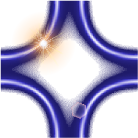 Another useful menu link is "Attachments" menu, either by mouse-over or at the bottom of each page (the menu at the bottom is identical with the mouse-over menu except the last one). The image on the right is an example of an attachment link (in the source code, "lia = link image attachment" is a local macro name. cf. la = link attachment). Click it, and you will be opening a new page corresponding for attachments belonging to this page.
 Try other links as well. A caveat. Except the "Edit" and "Attachments" links, I haven't tried much, and so I know what they exactly do!

Double-clicking is useful.
One frequently used feature is the double click feature in a page. (Try it now! You can always click the "Cancel" button in an edit page. This will trigger the "Edit (text)" action. This works in an edit page as well! Here is how it works in that case. Click "Preview" to preview contents that you just edited. Double click in or near an area you like to edit some more, and you will be sent back to the editor window. The editor window will be correctly positioned ... usually. Exceptions arise when the page uses certain parsers (bibtex, html, or mathjax) extensively so that there is a large block of content whose source code line number information cannot be known to MoinMoin.
Lastly, on a calendar, you can follow a date link. If the date page does not exist, then you will be asked to create a page. Any headings at the level equal to or higher than the first heading encountered in a date page will appear in a tooltip message triggered to pop up when the cursor hovers over that date.
GUI and Customization
You will notice that at the top portion of this wiki page, there is a navigation menu startig with "Home" and ending with "Help". You can add any personal links by using "Settings → Preferences". They will appear before "Help." You will also notice that there are many other options offered at "Preferences." For most of them, I am not sure what they do – if you find something cool or problematic, please let me know!
Other useful GUI elements are the page trail (a "history") bar, just below the navigation bar, and a search box in the upper right corner (move your mouse over in that area and it will become fully visible). The page trail bar will show several links that you last used, and I find them quite useful, in addition to the navigation bar. The search box lets you search for pages with certain strings in the title ("Titles") or any where in the page ("Text"). This is very useful, also.
Note that if you choose a different theme, GUI elements will show up differently, and some of them might even be messed up. This wiki site is intended for use with the default theme ("griffin").
No worries
Feel free to create/edit/rename/delete any pages. The backup system is reasonably extensive, and so even if you "mess up," it will probably be possible to clean and restore.
Security and access
All wiki sites in griffin, including this one, run on a certified SSL. So, no plain text (e.g. for your password) will be transmitted. If you mistakenly type http:// instead of https://, the address will be automatically corrected. Once you login, your login is valid for a certain period of time. For instance, if you login in the morning, then your login may still be valid when you re-launch your browser in the afternoon.
Note that the account that you use with wiki sites in griffin works like any Linux/Unix account in the following sense. You know the password, but nobody else, including the superuser, does, as the password is saved as a hash. However, if you forget the password, it can be reset (you will be notified by an email with a link to follow).
New as of June 18, 2011: now some wiki pages accept your Google credential, if you've got a Google email account. The login screen should tell you about this, if your wiki allows this. There are two scenarios for this.
- If you create an account with your Google credential, then your account will be different from a local account in two ways. First, there is no local password. Second, your email address will be your Google email.
- If you add your Google credential to an existing account (this can be done by typing your existing username), then ... (... email id model to be determined ...). In this case, your existing password won't disappear, you will have two ways to login for your existing account. If you create an account with your Google credential, then your email.
All Momo wiki pages are private, accessible to group members only. (Most wikis in Griffin are private; while some aren't, notably those related to teaching.) However, if you have some information that you like the world to be able to access, please let me know. It is simple to make a certain portion of wiki world-readable (and more if so desired and if reasonable to do so).
Links for more extensive help
Some general information can be obtained by following links below. Please use them in combination of a "copy and paste from an existing page" approach.
Note that the first link will get you out of the Momo wiki. The small icon preceding the link tells you that that link is a link to a page in a "friend wiki site." To come back to Momo, use the "Back" button of your browser.